
cloudworx.compose
What is cloudworx.compose?
 X
X
cloudworx.compose is part of cloudworx.components. These are tools we have developed for Salesforce that offer features that are missing from the market or simply not good enough.
With cloudworx.compose, you can create documents enriched with data from Salesforce with just one click.
Instead of spending half an hour or more writing a quote, gathering data and adjusting the formatting, cloudworx.compose lets you create a document in a matter of seconds. What's more, all data is displayed in the document exactly as it appears in the system. This means there is no risk of making input errors, which can of course be fatal when it comes to quotes. With cloudworx.compose, you can dynamically embed images and logos and much more.
We'll show you how to create a PDF document from a template in Microsoft Word. However, Excel spreadsheets, XML files and many other formats can also be created.
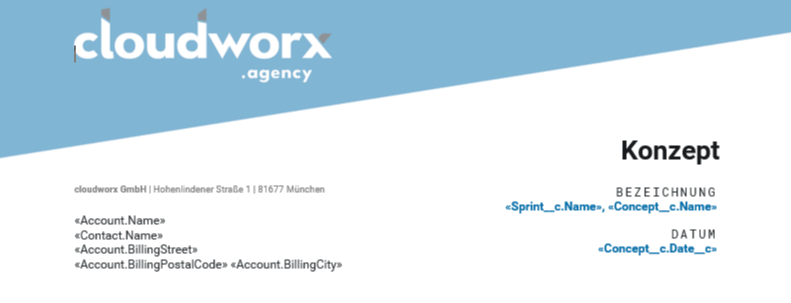
Let's take a normal Word document as our starting point. We want to turn it into a cover page. The actual offer items are listed in a separate template. When the PDF file is created, these different templates are then combined into one document. The advantage here is clear: if you have the same cover page for different document types, you don't have to adjust the cover page in every document when something changes, just this one file.
As with normal Word documents, templates can be filled with text and graphics. In addition, you can insert so-called merge fields. These are used to dynamically insert data from Salesforce into the file.
 X
X
Examples of merge fields are
- Normal text fields – such as the name of the concept
- Date fields, such as the creation date of the concept (Conceptc.Datec)
- Images stored in Salesforce or on an external server.
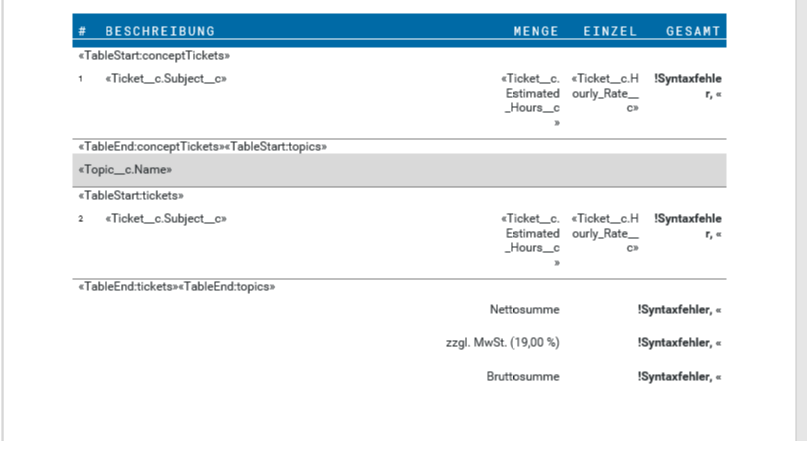
Let's now take a look at the template for the individual concept items. If, for example, there is a table called "conceptTickets" that displays all items in the current concept, cloudworx.compose automatically inserts all items in Salesforce one after the other. The template is stored in the system and does not need to be touched once it has been set up.
 X
X
In addition to merge fields, you can also insert conditions. For example, you can specify that if the contact is a woman, the salutation should be different than if the contact is a man. There are few limits to your imagination here.
In Salesforce, our data structure is such that we have a concept under which several tickets (these are the offer items) are located. In addition, the contact to whom the document is sent is linked here. Incidentally, all templates are automatically selected according to the language of the contact. There are German and English templates, and depending on which language the contact speaks, only these templates are used when creating the document. This happens automatically, without having to select them separately.
In addition to the cover page and the offer items that belong on every cover page, we can attach additional information to the PDF via this list.
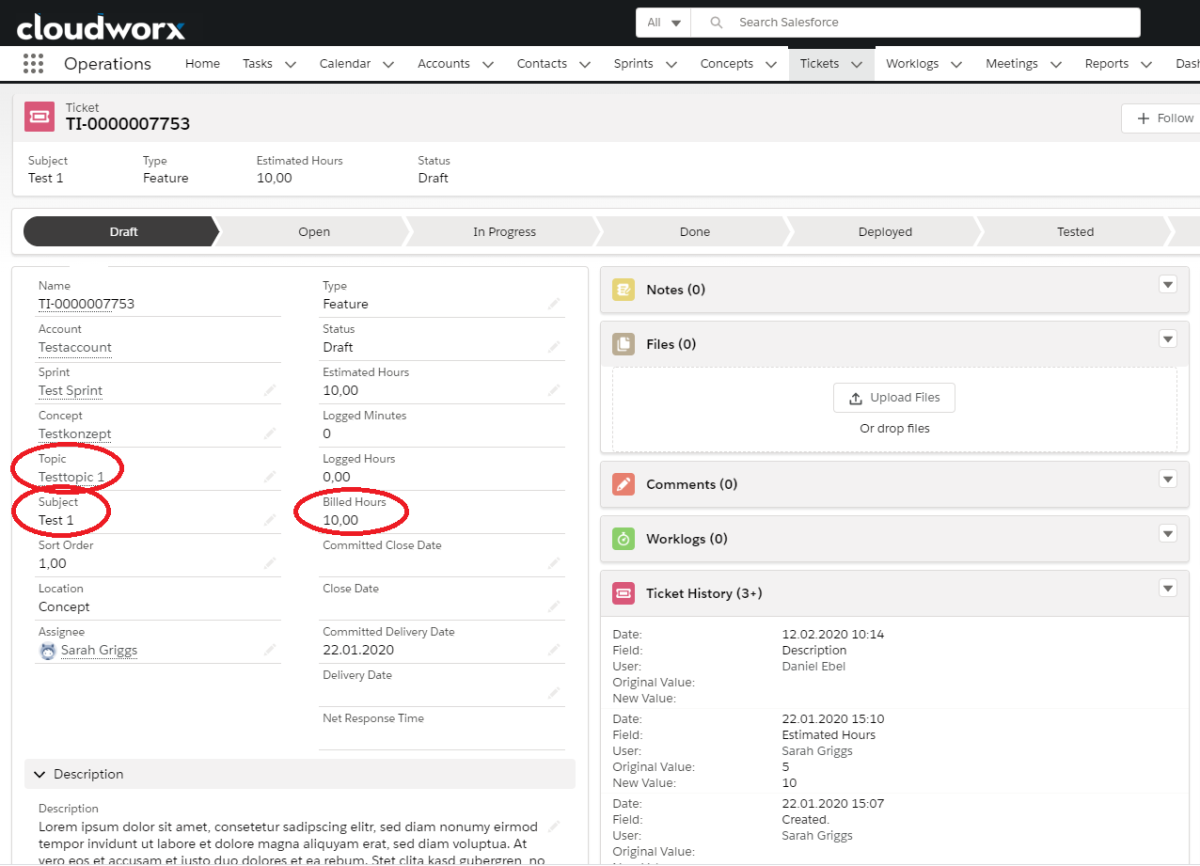
Before I create the document, I will briefly explain what data is displayed in the ticket that will then also appear in the PDF document: The ticket naturally contains the ticket name, the topic, i.e. the group to which the ticket belongs, and the estimated time for the ticket.
 X
X
In the concept, we now create the PDF document using the Create button. The finished document then appears in the File area. What happens now is that all data from Salesforce is collected and inserted into the Word file. The file is then converted to PDF format and saved in Salesforce.
And that's it.
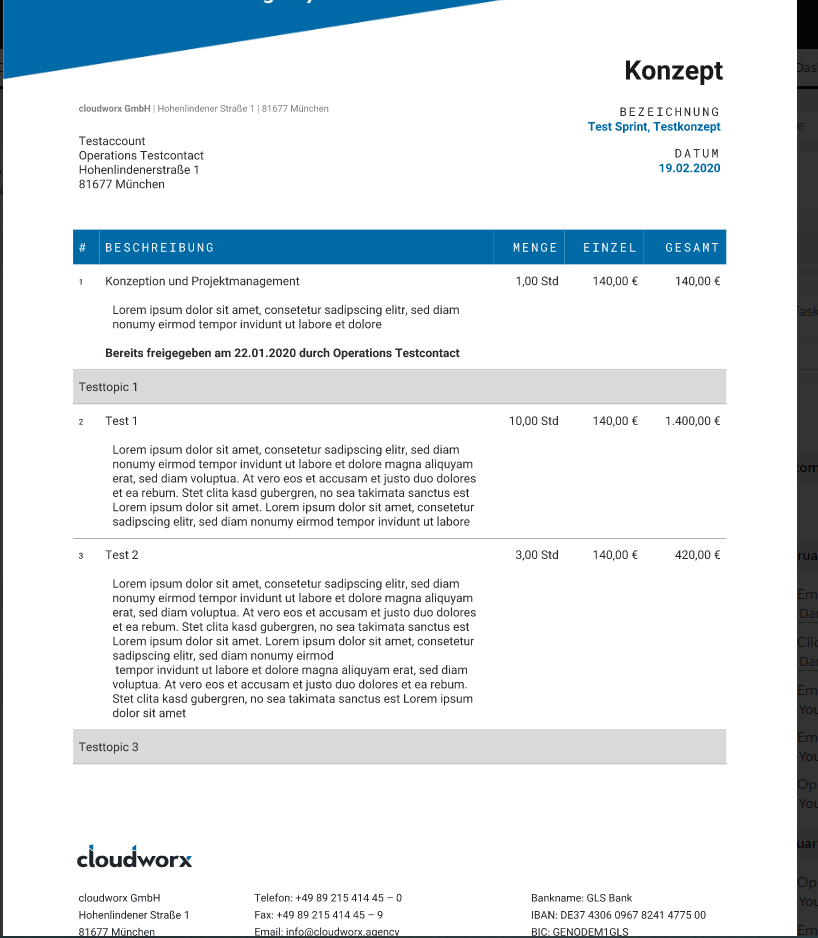
The PDF document has now been created. Let's take a look at it.
 X
X
The cover page has been inserted and filled in with my details. The additional information (via cloudworx.components) has also been attached. In addition, the merge fields have been filled in with data from Salesforce.
The recipient's details are now displayed here, along with information on the individual items.
In just a few seconds, you can create an attractive document that contains all the data you need.
Now all that remains is to send the document to the customer. We have also developed a solution for this with cloudworx.send, which saves the user a lot of work.
But more about that in another article.
For more information about us and cloudworx.components, please feel free to call us or send us an email.
The author
Daniel Ebel
Consulting Developer




As one of our first employees, Daniel knows our customers' processes like the back of his hand and enjoys simplifying seemingly complex tasks. Born in the Palatinate region of Germany, he studied English (with a qualification in economics) in Mannheim before moving to Munich. This makes him a classic career changer, which is why he is not only well versed in software development and business processes, but also in everything that the humanities have to offer. In his free time, Daniel enjoys spending time with his girlfriend and his two sons, Emil and Jona, or getting involved in his local community.