1. Introduction
What can cloudworx.list do?
With cloudworx.list, you have the following options:
- Display topic lists on record pages without requiring a direct object relationship, for example, display all opportunities from subordinate accounts. In addition, multiple object relationships can be referenced in a list.
- Display topic lists on record pages without an object relationship, for example, display a list of all available products on an opportunity.
- Creation of topic lists that are filtered according to multiple selection list values.
2. Requirements
To install cloudworx.list, you need Salesforce in the Professional, Enterprise, Performance, Unlimited or Developer Edition. Your user must also have administrator rights.
3. Installation and Setup
3.1. Installation
cloudworx.list is installed using a link provided by cloudworx.
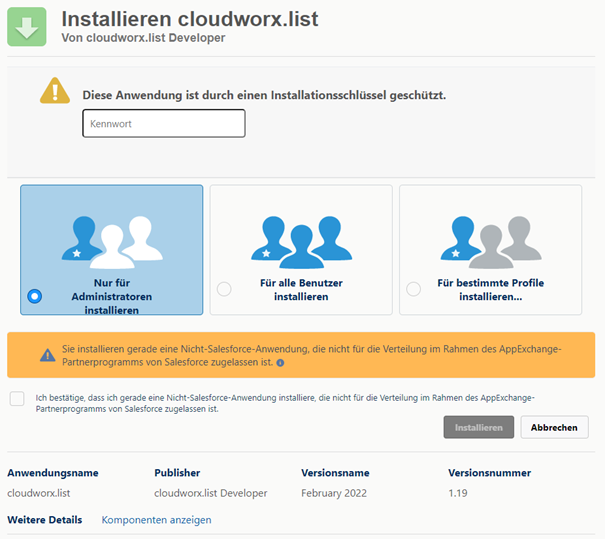
1. When you are on the installation page, select ‘For administrators only’. You can assign rights to other users later via permission sets.
2. Click on “Install”.
3. Tick ‘Yes, allow access to these third-party websites’ so that cloudworx.list can communicate with our server.
 X
X
Once your installation is complete, you will find all components associated with the package in your organisation. You can recognise them by the namespace prefix ‘cwls’.
You may receive a notification stating, ‘Installing this application may take some time.’ If this is the first time you have seen this message, don't worry. Just click ‘Done.’
3.2. Setup
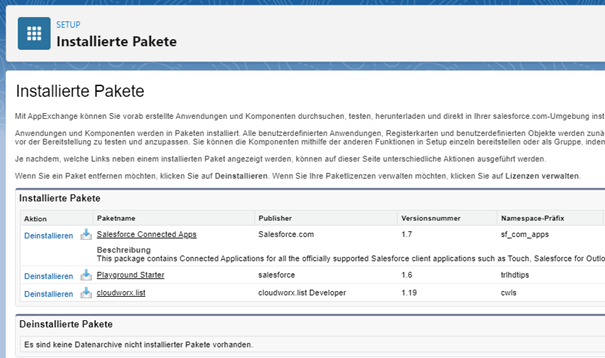
Once installation is complete, we recommend checking the installation in the ‘Applications’ section under ‘Installed Packages’ in Salesforce Setup.
 X
X
First, the usage rights for cloudworx.list must be assigned. Use of the application requires that certain rights be assigned to the desired Salesforce users. A distinction is made between the type of use desired:
- cloudworx.list user: required for creating lists
1. Search for ‘Permission sets’ in the setup.
2. Search for ‘cloudworx.list User’ in the list and click on it.
3. Go to ‘Manage assignments’ and add the desired users by selecting the checkbox.
Next, the app page must be activated.
1. To do this, search for ‘Lightning App Builder’ in the setup.
2. Click on the app page ‘cloudworx.list’.
3. Go to ‘Activation’, fill in the dialogue window accordingly and save the changes.
4. Configuration
4.1. Creating a cloudworx.list list view
To create a list view with cloudworx.list, navigate to the desired object in Salesforce where you want to display the list view. Then go to the setup settings wheel and select Edit Page.
Once the Lightning Component Web App has opened, scroll down to the bottom of the Component column menu on the left and select the cloudworx.list component under Custom. Then simply drag and drop the cloudworx.list component and place it in the object display in the middle of the page where you want the list view to appear on the object.
A series of fields will then open in the column on the right-hand side, where you can set the parameters for the list view.
| Field | Description |
|---|---|
| Object | Here you can select the object whose records you want to display in the list view. You will see a selection of all available standard and custom objects. Note: Please pay attention to the correct capitalisation. |
| Icon | Here you can select the icon you want to use to display the list. For example, {standard:contact} adds the standard contact logo and {standard:account} adds the account logo ({iconcategory:iconname}). Of course, custom icons can also be added. You can use any available SLDS icon; a list of available icons can be found here https://www.lightningdesignsystem.com/icons/. If you leave the field blank, the icon stored for the tab will be used automatically. |
| List Name | Here you can enter a name for the list. |
| Context Fields | Here you can enter the ID field in whose context the object fields of the relation fields are to be displayed. By default, the ID is stored here. However, it would also be possible to enter the parent ID, for example. |
| Relation Fields (Optional) | Here you can enter the developer names of the object fields that establish the context of the relationship between the object on which the list is displayed and the data record you are displaying in the list. If there are several fields, you can enter them separated by commas. It is important that these fields contain an ID. These can be look-up or master detail relationships. If you want to create a list of records that have no direct reference to the display object, you can use a formula field or text field that contains the corresponding ID. Important note: This must be the long ID. |
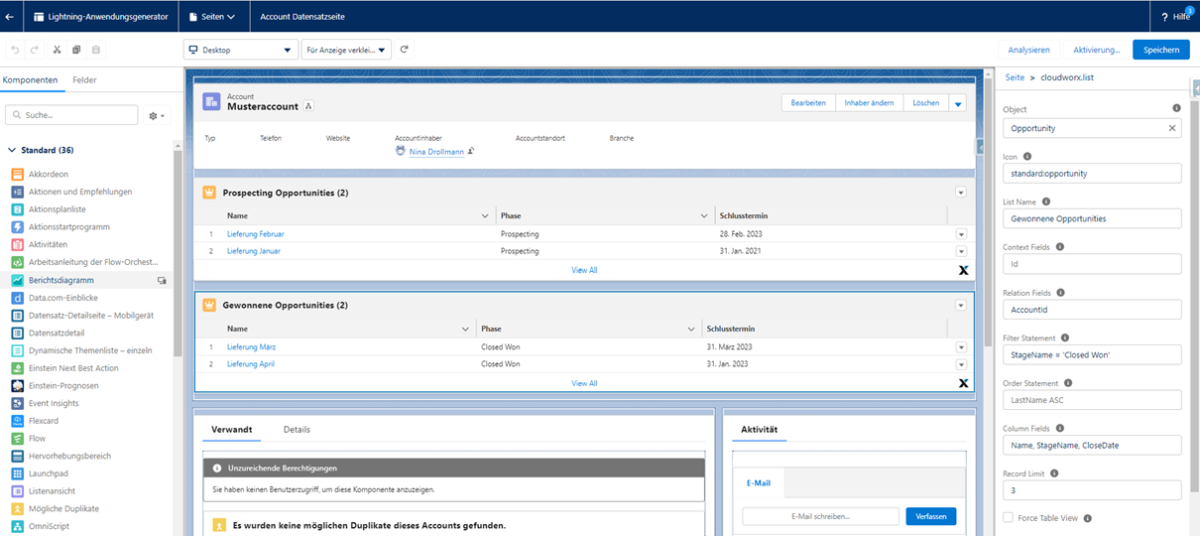
| Filter Statement (Optional) | Here you can set filter conditions for the data records to be displayed in the list. Only the data records that match the filter entered here are included in the scope. For example, you can filter by status. |
| Order Statement (Optional) | Specifies the order in which the records are displayed in the list. For example, you can sort by creation date. |
| Column Fields | Define your list columns here by entering the developer names of the objects in the order you want. |
| Record Limit | Specify the maximum number of records that are displayed in the list on the record without clicking on ‘View All’. |
| Force Table View | Here you can set the list to always be displayed in tabular view, regardless of the size you have selected for your list component. |
| Wrap Text | Allows you to set a line break so that the entire line content is displayed. |
| Enable Inline Editing | Allows you to update and save editable fields in the list view. |
| Allow Batch Editing | Allows you to update multiple editable fields in different lines and save them in one operation. |
5. Examples of use
5.1. Example 1: Display all active products on an opportunity
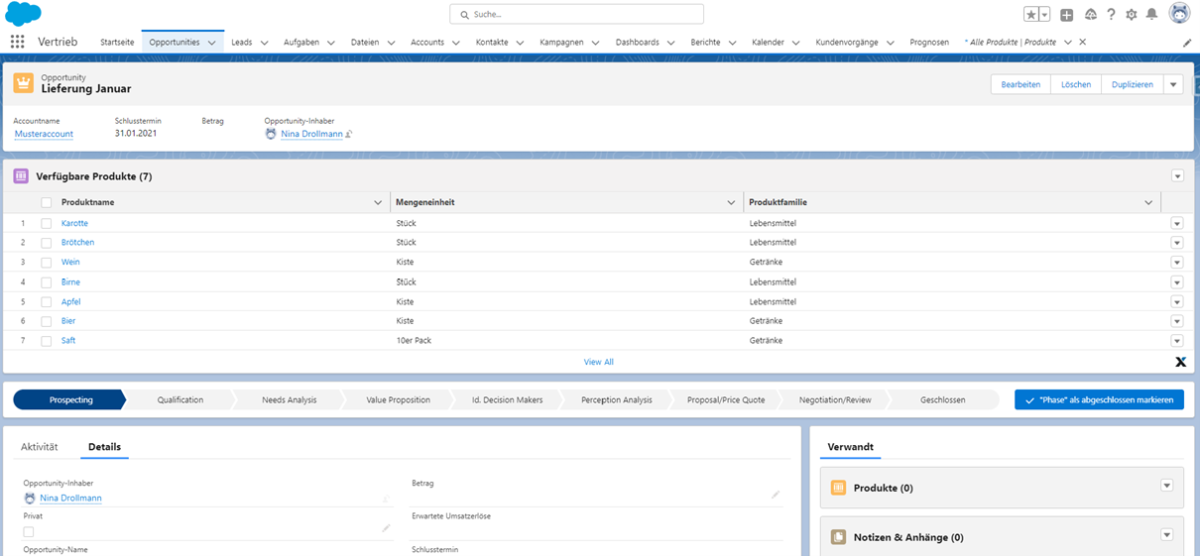
In this example, records (products) that are not related to the object (opportunity) are displayed as a list on an opportunity record. Only active products are displayed. This gives the sales employee a quick and easy overview of products that they could offer in the opportunity.
 X
X
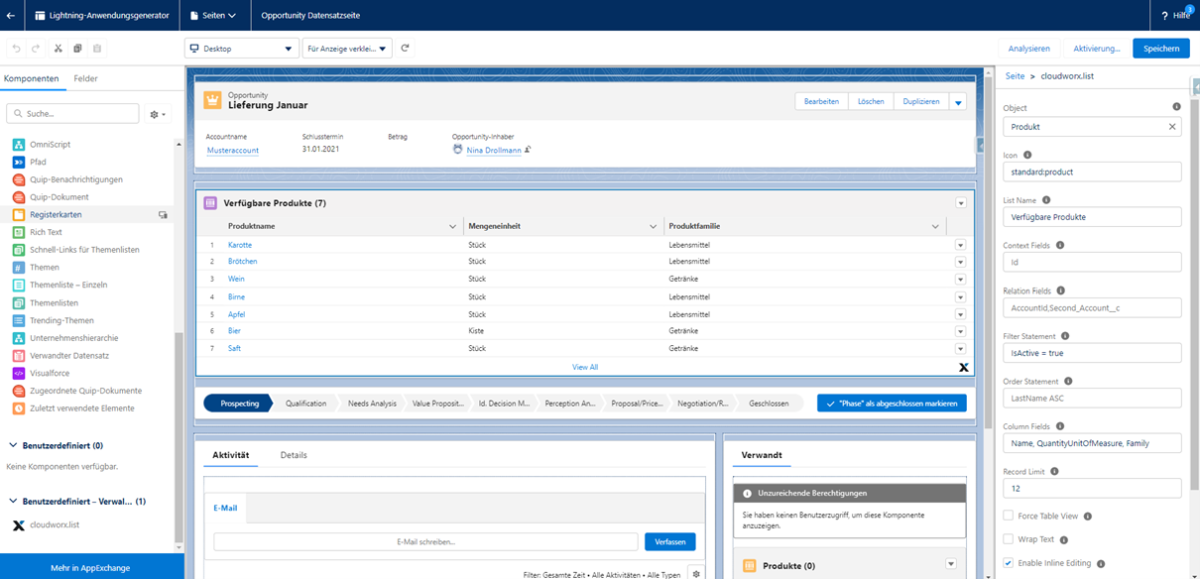
List view: View of the data record page in the Lightning Application Builder with cloudworx.list
Component:
 X
X
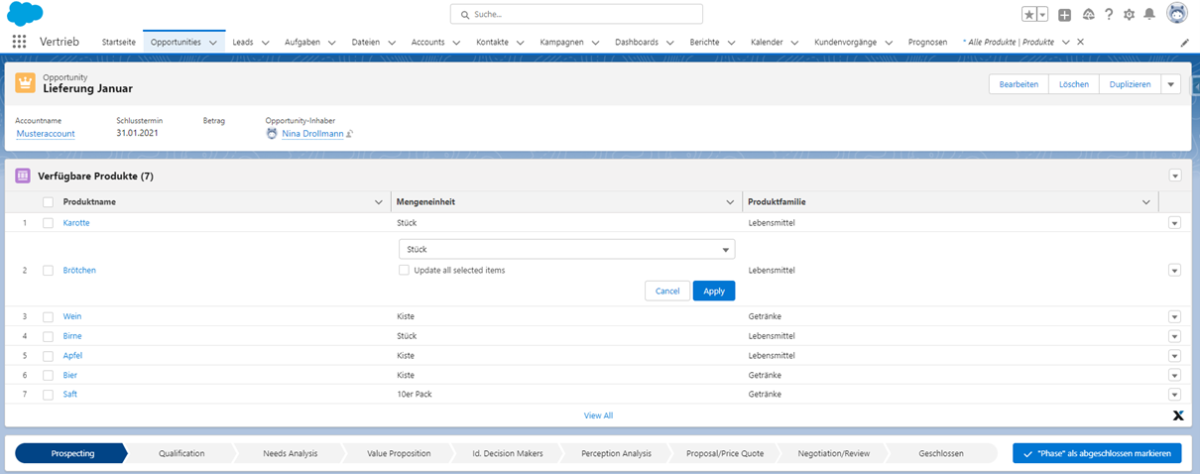
If ‘Enable Inline Editing’ is selected in the cloudworx.list options, the records displayed in the list can be edited:
 X
X
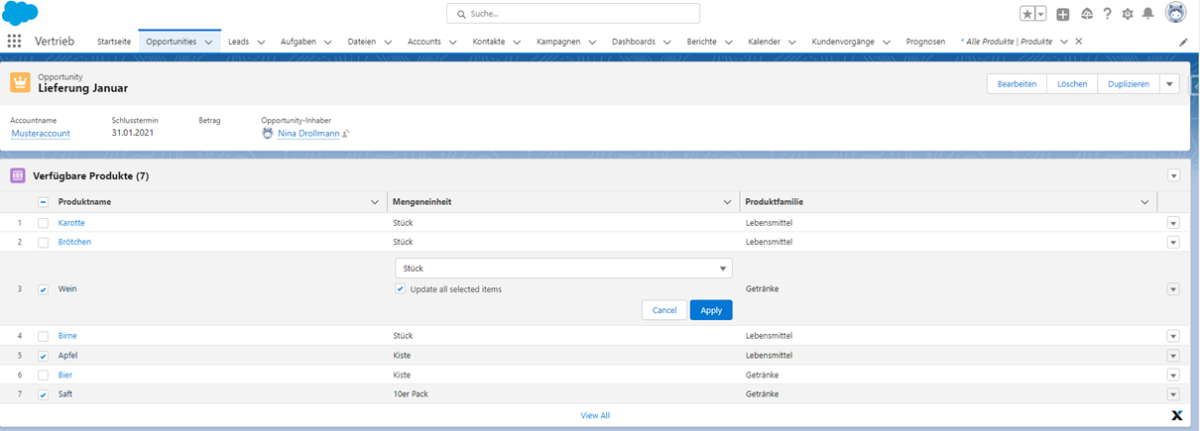
If ‘Allow Batch Editing’ is selected in the cloudworx.list options, multiple records displayed in the list can be edited in one step. In the following example, the unit of measure for all products selected in the list is set to ‘Piece’.
 X
X
5.2. Example 2: Filtered list view of data records
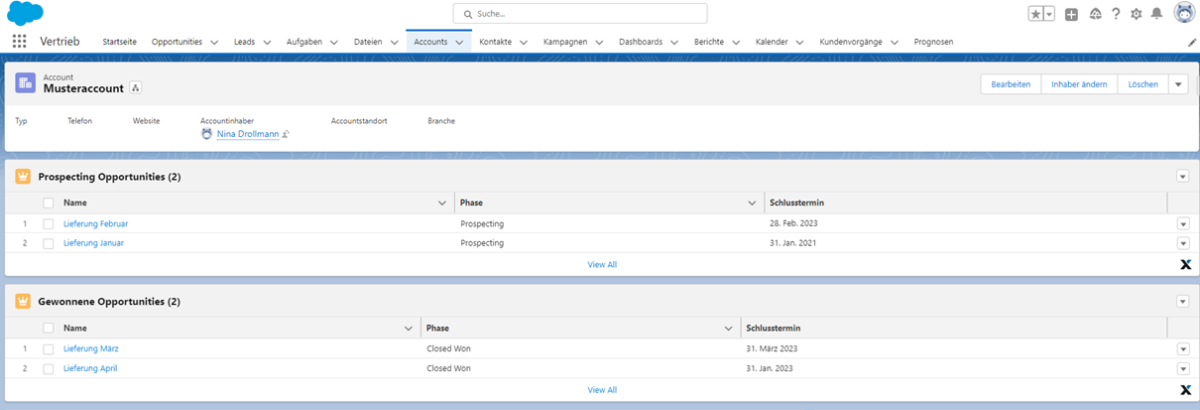
Here is an example of a filtered list view of data records (opportunities) that are directly linked to the object (account) on which they are to be displayed. Here, two list views have been filtered according to the corresponding opportunity phase.
 X
X
Corresponding Lightning application generator view with cloudworx.list component:
 X
X
5.3. Example 3: View of parent account
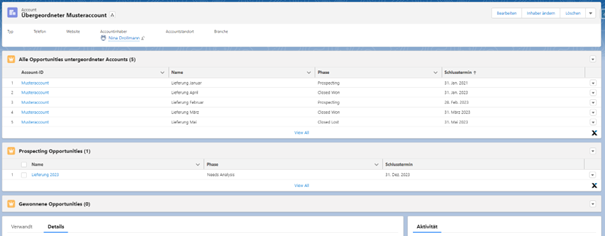
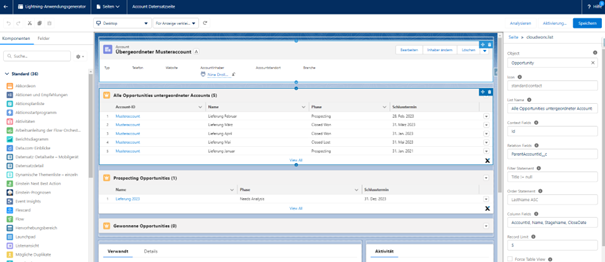
Example 3 shows a possible view on a higher-level parent account. Using cloudworx.list, all opportunities on the parent account that belong to the subordinate accounts can be displayed here. This provides a complete overview of all opportunities associated with a company.
 X
X
Corresponding Lightning application generator view with cloudworx.list component:
 X
X
Legal notice | Privacy Policy