1. What can cloudworx.gantt do?
cloudworx.gantt is a Salesforce-native app that can be used to visualise and plan process flows.
Salesforce-native means that the app runs entirely within Salesforce and does not contain any external components.
Additional features:
- GANTT charts can be created for almost all standard objects and all custom objects
- Settings can be made without any programming knowledge
- The critical path of a process can be determined automatically
- Processes can be clearly grouped into three levels
- Settings can be made without any programming knowledge
2. Requirements
To install cloudworx.gantt you need Salesforce in the Group, Professional, Enterprise, Performance, Unlimited or Developer Edition. Your user must also have administrator rights.
3. Installation and Setup
cloudworx.gantt is installed via AppExchange or using a link provided by cloudworx.
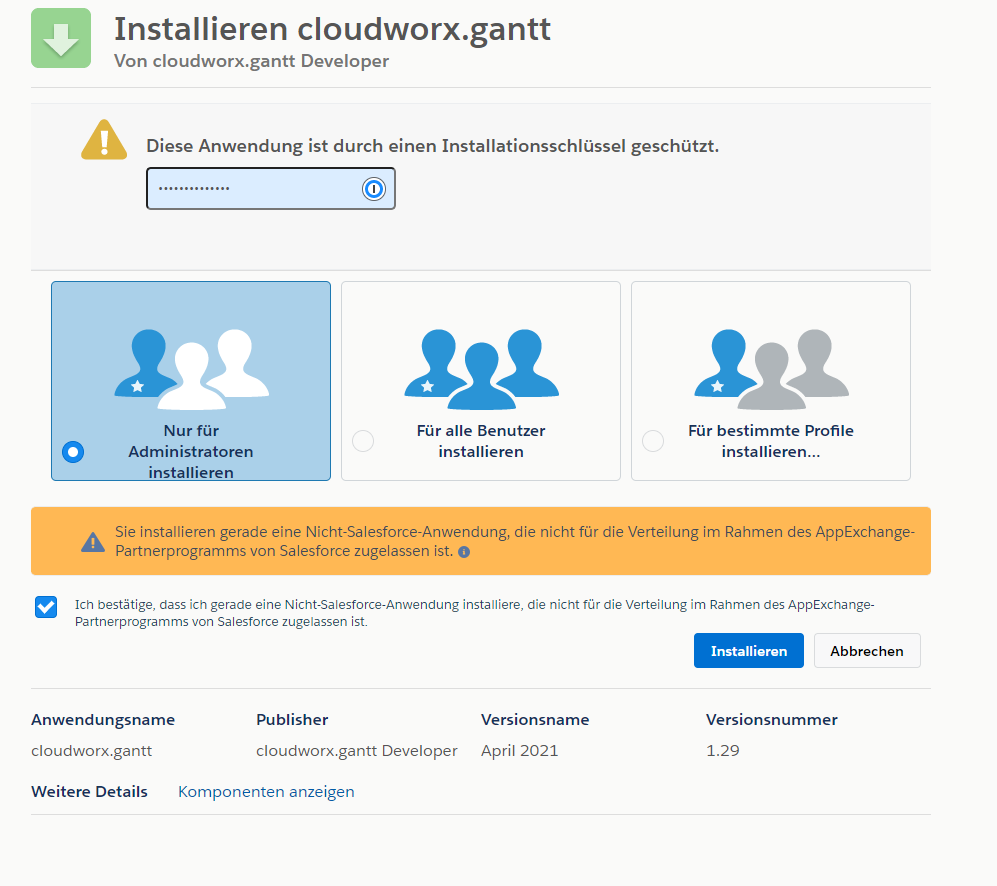
- When you are on the installation page, select ‘For administrators only’.
- For installations not made via App Exchange: Confirm that you are installing an app that was provided directly by cloudworx and that you did not obtain via App Exchange.
- Go to ‘Install’.
 X
X
Once your installation is complete, you will find all components belonging to the package in your organisation. You can recognise them by the namespace prefix "cwgt".
You may receive a notification stating, "Installing this application may take some time". If this is the first time you have seen this message, don't worry. Just click "Done."
4. Creation of a GANTT chart
The best way to understand how to create a diagram is with an example. For this example, we will make the following assumptions:
Example:
Our example company purchases real estate. After purchase, the property is renovated. The GANTT chart is used for the renovation.
In addition to the standard Sales Cloud objects, the organisation also contains custom objects with the following fields:
Custom object 'Action' (API name: 'Action__c')
The measure specifies what needs to be done. For example, demolishing an existing building so that a new one can be built on the site. The fields relevant to this example are:
| Field name | API Name | Type |
|---|---|---|
| Opportunity | Opportunity__c | Master-detail-relationship |
Custom object 'Construction phase' (API name: 'Building_Phase__c')
During the construction phase, it is determined for each measure exactly when which actions will be carried out. For example, for the measure “Demolition' from 1 January 2021 to 31 January 2021, traffic must be closed. Between 15 January and 25 January, the house will be demolished. This would then be two specific construction phases.
The following fields are relevant for the example:
| Field name | API name | Type |
|---|---|---|
| Measure | Action__c | Master-detail relationship |
| Progress | Progress__c | Percentage |
| Actual start | Real_Start__c | Date |
| Actual end | Planned_End__c | Date |
| Target start | Real_Start__c | Date |
| Actual end | Real_End__c | Date |
| Active | Active__c | Checkbox |
| Deadline | Deadline__c | Date |
| Action Name | Action_Name__c | Formula field (name of the action) |
| Opportunity Name | Opportuniy_Name__c | Formula field (name of the opportunity) |
| Opportunity Id | Opportunity_Id__c | Formula field (ID of the opportunity) |
Below the opportunity, there is an object that represents measures for the renovation. Each measure has one or more construction phases. The planned start and end dates (target) and the actual start and end dates (actual) are specified for these construction phases. In addition, the progress in percent can be specified for each construction phase.
4.1. Creation of the GANTT chart using the Lightning Application Generator
4.1.1. Creation of a new Lightning page
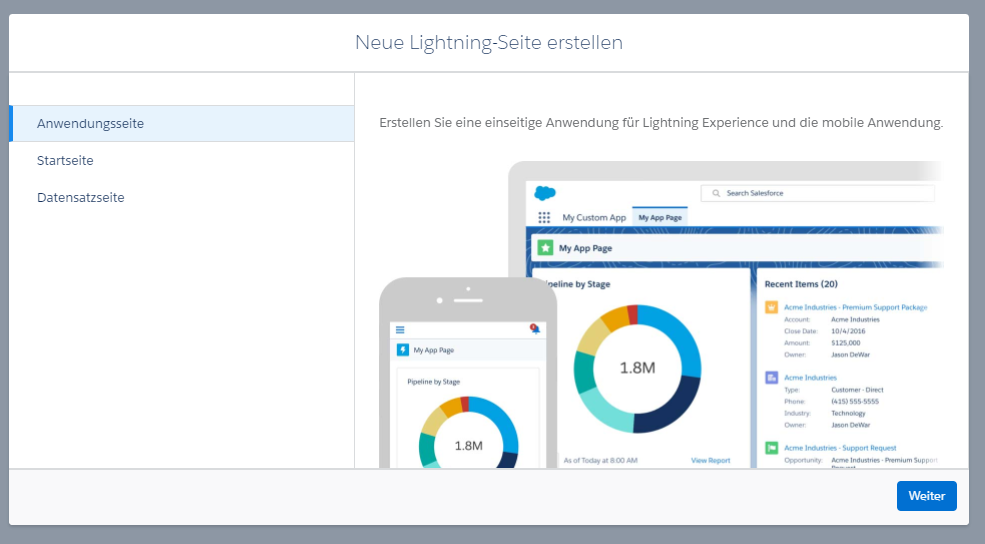
In the Light Application Generator, you can create a new Lightning page by clicking the 'New' button.
Select the 'Application page' option here:
 X
X
Next, you need to give the Lightning page a name. We're calling ours 'Overview of measures (GANTT chart)'.
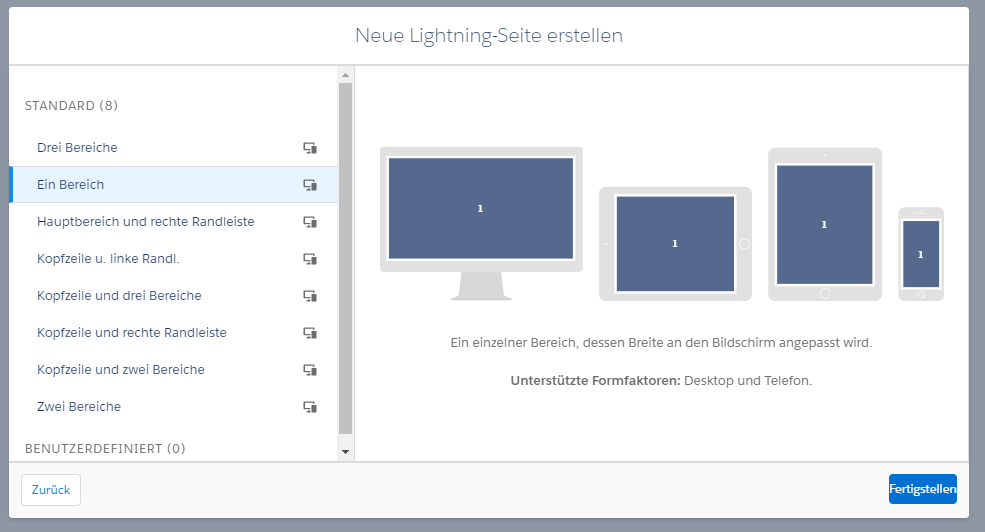
Form factor:
The form factor to select is 'One area'.
 X
X
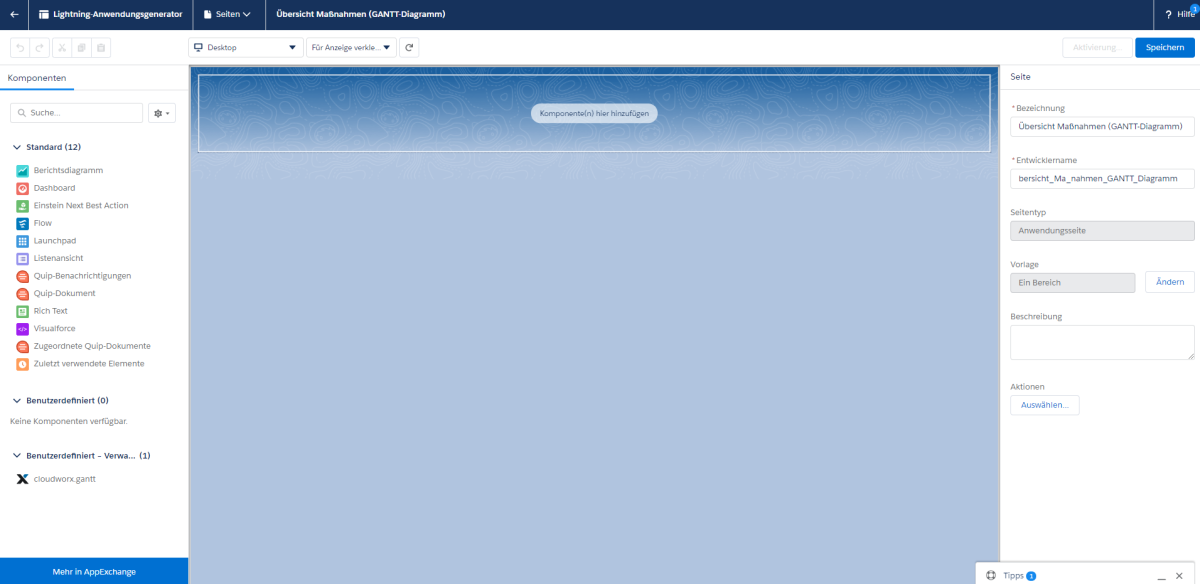
The following view opens:
 X
X
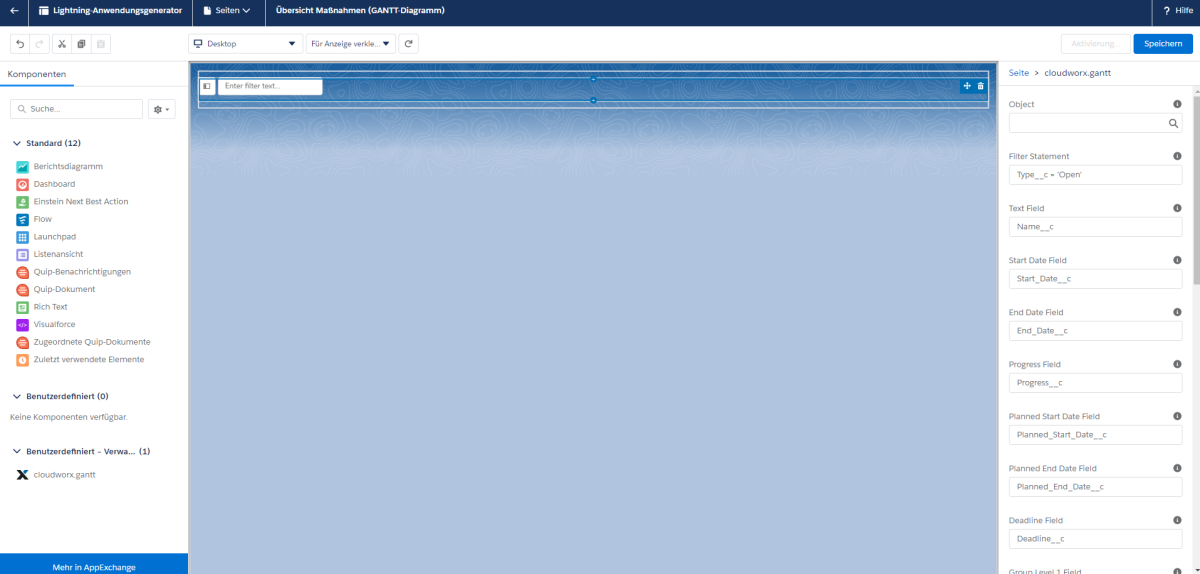
The user-defined (managed) components are displayed at the bottom of the left-hand column entitled Components. The cloudworx.gantt component is now displayed here.
This can be dragged and dropped into the large middle column (‘Add component(s) here’):
 X
X
As no data has been entered yet, nothing is displayed in the middle column. The settings can now be made in the right-hand column. Examples are already shown here. The following settings can be made:
| Field name | Description |
|---|---|
| Object | Select the object to be visualised. |
| Filter statement | Set filters to display only specific data records of the object defined in the “Object” field. The filters are created using SOQL syntax. |
| Text Field | Insert the API name of the field to be displayed as the label for the respective bar in the GANTT chart. |
| Start Date Field | Field to be displayed as the start date of the bar in the GANTT chart. This can be changed in the chart using drag and drop. |
| End Date Field | Field that should be displayed as the end date of the bar in the GANTT diagram. This can be changed in the diagram using drag and drop. |
| Progress Field | Field (percentage value) to be displayed for the progress indicator. This field can be adjusted in the diagram using drag and drop. |
| Planned Start Date Field | Field containing the planned start date. |
| Planned End Date Field | Field containing the planned end date. |
| Deadline Field | Field containing the deadline date. |
| Group Level 1 Field | Field to be grouped by (level 1). |
| Group Level 2 Field | Field to be grouped by (level 2). |
| Group Level 3 Field | Field to be grouped by (level 3). |
| Link Object Name | Name of the object that creates a link between the individual data records. Also required for the critical path. |
| Link Source Field | Field in the link object that refers to the previous record of the main object. |
| Link Target Field | Field in the link object that refers to the next record of the main object. |
| Show Menu | Checkbox: If deactivated, the menu is not displayed in the GANTT diagram. |
| Default Tree State | Defines how the data record tree is displayed in the GANTT diagram: Full: All information is displayed. Name: Only the name of the data record is displayed. None: Only the GANTT bars are displayed. You can also switch between these settings manually in the GANTT diagram. |
| Start Collapsed | The data record tree is displayed completely collapsed when the GANTT chart is called up. |
| Show Critical Path | Defines whether the critical path should be displayed. This is only relevant if there is an object that links the individual data records (Linked Object). |
| Enable Critical Path | Defines whether the critical path is active. This is only relevant if there is an object that links the individual data records (linked object). |
| Show Autoschedule | Defines whether a button should be displayed that automatically moves the date of the individual data records in case of overlaps. |
| Enable Autoschedule | Defines whether autoscheduling is enabled. |
| Read Only | Defines whether the GANTT diagram can be edited or not. |
| Colour | Defines the base colour of the GANTT diagram as a hexadecimal value. The bars of the diagram are shades of this base colour. |
| Height | Height of the diagram in pixels |
In our example, we have entered the following values:
| Field name | Description |
|---|---|
| Object | Object 'Construction phase' selected. We want the data records for this object to be displayed as bars. |
| Filter statement | We have set the following filter to display only active construction phases in the diagram: Active__c = TRUE |
| Text Field | Here we enter the API name of the field that should be the label for our bar: 'Name' |
| Start Date Field | API name of the start date that should be customisable in the diagram via drag and drop: Real_Start__c |
| End Date Field | API name of the start date that should be adjustable in the diagram via drag and drop: Real_End__c |
| Progress Field | API name: Progress__c |
| Planned Start Date Field | API name: Planned_Start__c |
| Planned End Date Field | API name: Planned_Start_Date__c |
| Deadline Field | API name: Deadline__c |
| Group Level 1 Field | At the top level, we want to group by opportunity. Here, we have created a formula field in the 'Construction phase' object that contains the name of the opportunity that is located above the measure: Opportunity_Name__c |
| Group Level 2 Field | At the second level, we want to display all measures that exist under the opportunity and above the construction phases. To do this, we have created a formula field in the 'Construction phase' object that contains the name of the measure above it: Action_Name__c |
| Group Level 3 Field | In our example, we do not have a third level and therefore leave the field blank. |
| Link Object Name | We do not yet have an object to link the individual construction phases to. Therefore, we leave this field blank. |
| Link Source Field | We also leave this field blank. |
| Link Target Field | We also leave this field blank. |
| Show Menu | Since we want to display the menu, we leave the checkbox selected. |
| Default Tree State | Here, we also leave the default value 'Full' because we want to see all information displayed in the tree. |
| Start Collapsed | We want to see all information immediately, so this field remains disabled. |
| Show Critical Path | Since we do not have a 'Link Object', this value is irrelevant for the example. |
| Enable Critical Path | Since we do not have a 'Link Object', this value is irrelevant for the example. |
| Show Autoschedule | Since we do not have a 'Link Object', this value is irrelevant for the example. |
| Enable Autoschedule | Since we do not have a 'Link Object', this value is irrelevant for the example. |
| Read Only | We want to be able to edit the diagram, so this checkbox remains unchecked. |
| Colour | We select red as the base colour with the hex value '#ff0000'. |
| Height | We leave the height of the diagram at 800 pixels. |
Note:
The following fields are required:
- Object
- Start Date
- End Date
All other fields are optional.
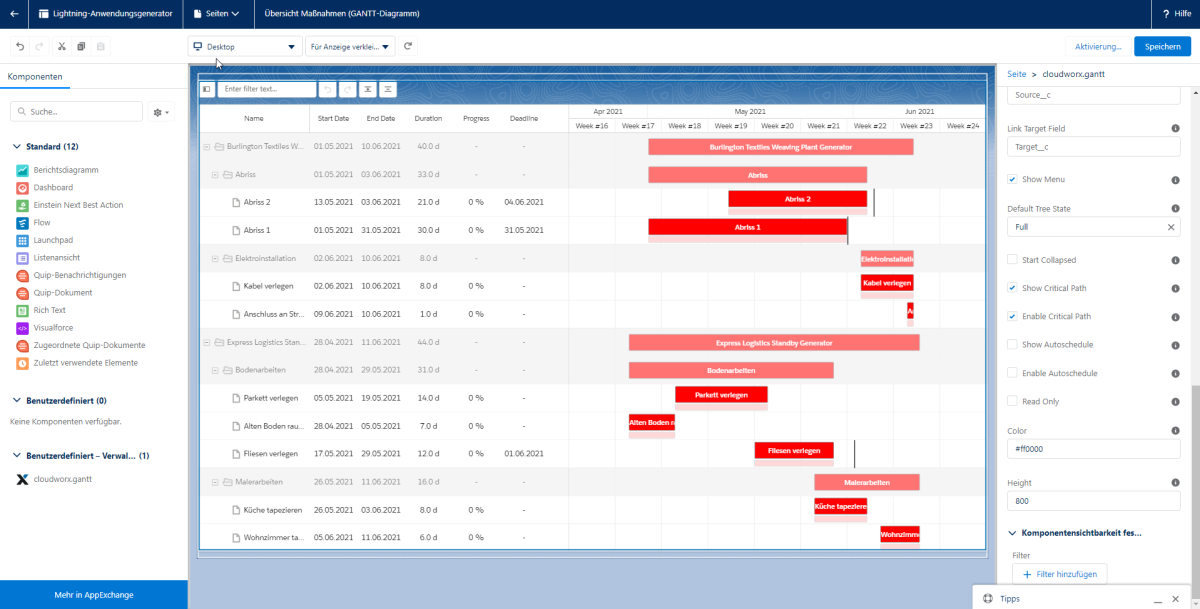
Once you have created the required fields, the view is updated and the Gantt chart is displayed, provided that the relevant data is already available in the system. This means that you can see the effects of any changes you make in real time.
In our example, the Lightning Application Generator now looks like this:
 X
X
After saving, the application must now be activated. It can be added to an application page (app) here, for example.
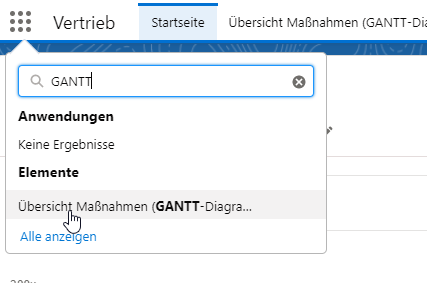
The created application can be accessed via the application selection button. To do this, simply enter the name of the application in the search window in the app launcher (9-point menu at the top right):
 X
X
5. Creating and using a link object
5.1. Creating a link object
The link object contains two lookup relationship fields, both of which refer to the same object.
In our example, we want to link the records of the 'Construction phase' object. So we create an object with the name 'Construction phase dependency' (API name: BuildingPhaseDependency__c) and create the following two fields there:
Subsequent construction phase (API name: Following_Building_Phase__c)
Related to: Construction phase
Name of subordinate relationship: Preceeding_Building_Phases
Required: Activated
Name for topic list: Preliminary construction phase
Preliminary construction phase (API name: Preceeding_Building_Phase__c)
Related to: Construction phase
Name of subordinate relationship: Following_Building_Phases
Required: Activated
Name for topic list: Subsequent construction phase
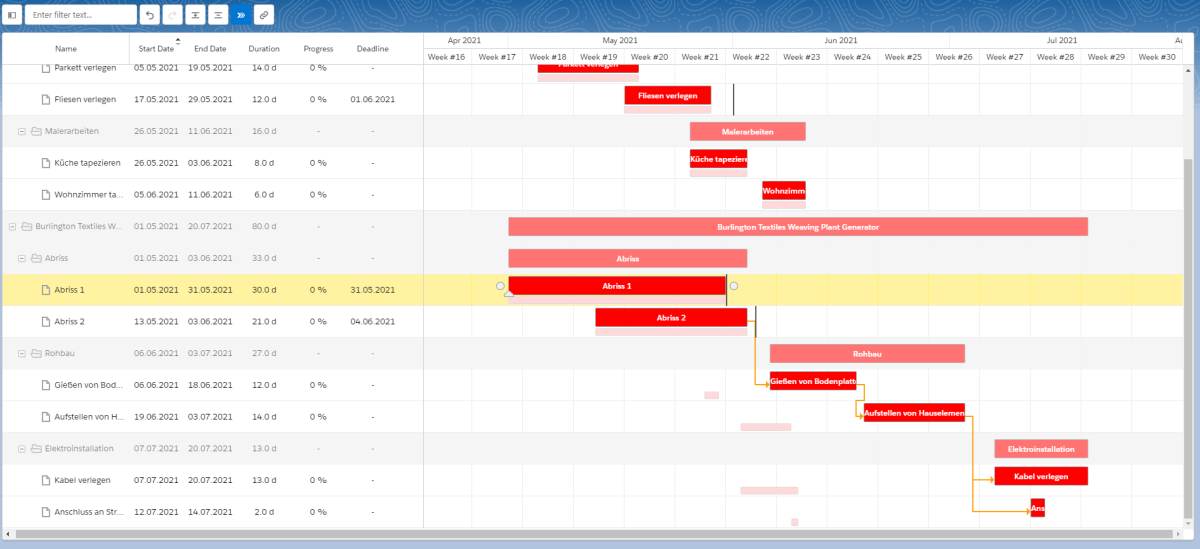
For logical arrangement in the layout, it is important that the name of the subordinate relationship and the designation for the topic list reflect the opposite construction phases. The list of construction phases linked via the 'Preceding construction phase' field contains the subsequent construction phases and vice versa.
In the construction phase data set, you can then see at a glance which construction phases come before and after this construction phase:
 X
X
5.2. Referencing the link record in the Lightning Application Builder
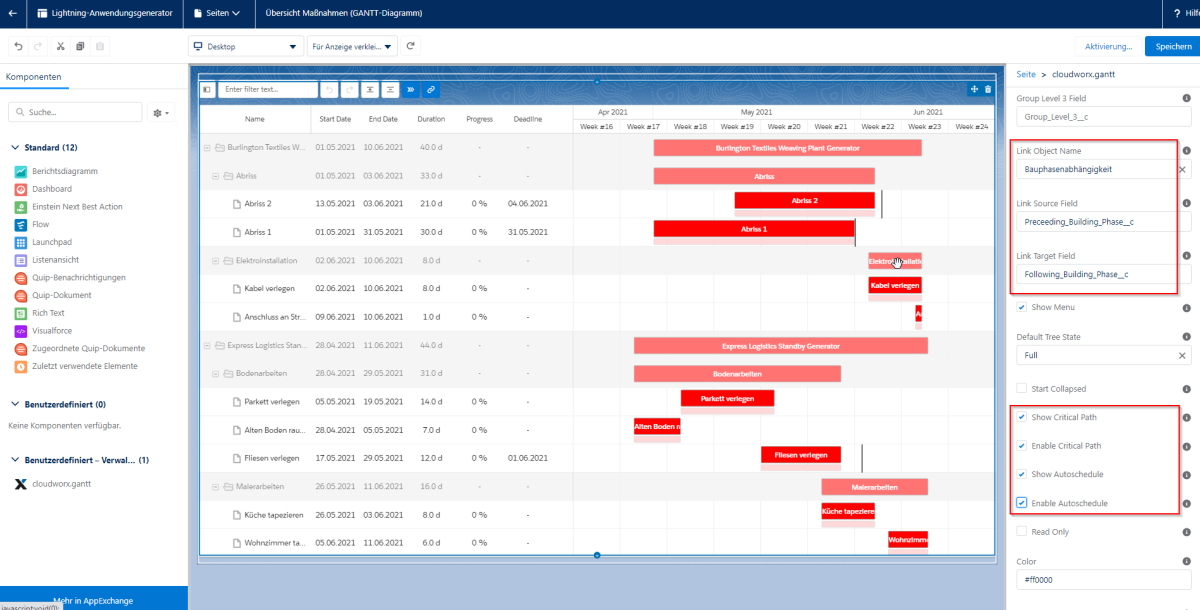
In the Lightning Application Builder, we still need to reference the object we just created. The following fields, outlined in red, are relevant for the link:
 X
X
| Field name | Description |
|---|---|
| Link Object Name | The object that connects the construction phases: Construction phase dependency |
| Link Source Field | The relationship field to the previous construction phase: Preceeding_Building_Phase__c |
| Link Target Field | The relationship field to the next construction phase: Following_Buidling_Phase__c |
| Show Critical Path | When enabled, the button for turning the critical path on and off is displayed |
| Enable Critical Path | Enables the critical path when the diagram is opened |
| Show Autoschedule | When enabled, the button for turning automatic scheduling on and off is displayed |
| Enable Autoschedule | Enables automatic scheduling by default for this diagram. |
| ATTENTION: | Automatic scheduling should be used with caution, as it may automatically change data in the main data sets |
6. Operation of the GANTT chart
Some of the controls shown here can be hidden when creating the GANTT chart or are not available if the necessary fields have not been entered.
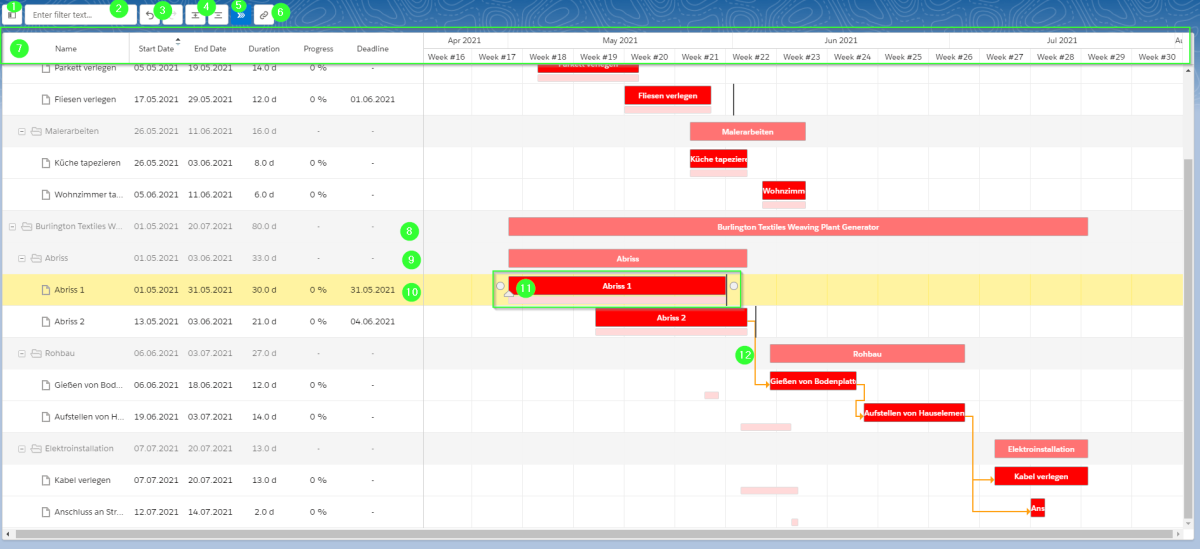
The following controls are available in the diagram:
 X
X
(1) Menu view
You can switch between the menu views using the button:
- Full menu (view in screenshot): all information is displayed. Takes up the most space.
- Only labels: Only the labels of the individual levels are displayed.
- No menu is displayed.
(2) Text filter
The diagram can be filtered by entering text. Only rows containing the character string entered in the filter will then be displayed.
(3) Change history
The buttons can be used to undo changes made in the current session and to undo this undo operation.
(4) Folding in/out
Folds individual levels in or out.
(5) Critical path
This button can be used to switch the display of the critical path on or off.
(6) Autoschedule (automatic scheduling)
When you move an activity, all subsequent activities (those directly or indirectly linked to the activity) are also moved if they would otherwise overlap.
Caution: Depending on the number of activities, activating this function may result in many changes to data records.
(7) Table headings
When the menu is fully expanded, you can see all the information in the diagram:
- Name: The name of the task or level
- Start Date: The current (NOT the scheduled) start time
- End Date: The current end time
- Duration: The duration of the task in days
- Progress: The progress in percent, if a percent field has been specified in the settings.
- Deadline: The deadline date, if specified.
Please note: When you click on the respective heading, the processes are sorted according to the selection. If you click again, they are sorted again, but in reverse order.
This allows you to sort by duration in ascending or descending order, for example.
The currently selected calendar section is displayed on the right-hand side. The year is displayed in the top line. Below this, the year is divided into smaller units. Which unit this is depends on how much detail you want to see.
INFO: To increase or decrease the level of detail in the calendar, hold down the control key (Ctrl) and turn the mouse wheel to zoom in or out.
- The individual days are displayed at the lowest level (weekday, day, month). Weekends are greyed out for a better overview. The current day is highlighted in dark grey.
- The calendar weeks of the current year are displayed one level above.
- A few levels above that, only the months are displayed.
- The quarters are displayed at the top level.
(8) and (9) Levels 1 and 2
The top level aggregates the data from the levels below it. Progress and deadlines are not displayed here.
Another level is possible, but has not been created in this example.
(10) Process level
The process level shows the actual process.
When you click on the process or the line, the line is highlighted in yellow. Double-clicking on the line takes you to the corresponding Salesforce record. If a deadline is exceeded, a red circle with a white exclamation mark is displayed next to the deadline date as a warning.
(11) Taskbar
The task bar consists of various elements:
The darker area shows the period between the actual start and end dates. If these are editable fields and read-only mode is not activated, they can be edited using drag and drop.
The narrower, lighter area below shows the period between the planned start and end dates. If no planned date has been entered or no fields have been filled in here, this area is not displayed. It cannot be adjusted in the diagram.
The upward arrow at the front edge of the bar can be used to change the progress, provided that a progress field has been defined and is editable. Here, the progress can be adjusted for each process using drag and drop. This arrow is only displayed when the process has been selected, i.e. highlighted in yellow.
The black line indicates the deadline date. It cannot be moved in the diagram. If the deadline is exceeded, the number of days by which the deadline has been exceeded is displayed behind this bar (e.g. ‘Overdue: 2 days’).
The white dots in front of and behind the bar only appear when the process has been selected (by simply clicking on the red bar or on the line in the menu) or when you move the mouse over the process. They also only appear when there is a connection object.
The points on the right-hand side can be linked to the points on another bar on the left-hand side using drag and drop to show a dependency between the two processes. This creates a new data record for the connection object.
(12) Connection arrow
The connection arrow indicates the dependency between the individual processes. There is one data record for the connection object for each arrow.
To delete the connection (and thus also the data record), double-click on the arrow and confirm the action.
If the 'critical path' option is active and the connection between two processes belongs to the critical path, the arrow is coloured red.
7. Dynamic filling of GANTT chart
All settings that have been made statically in the Lightning Application Builder can also be made dynamically via URL parameters. To do this, first create a GANTT chart using the Lightning Application Builder and then adjust the settings using the URL parameters.
URL parameters are pieces of information that are provided when opening a diagram (e.g. via a button) and that influence the content of the diagram.
7.1. Creating a button
The GANTT chart can be displayed via the app drawer. In this case, the static information entered in the Lightning Application Generator is used for visualisation.
However, you can also open the diagram via the URL assigned by Salesforce, allowing you to dynamically influence content and behaviour.
As an example, we will show how to open the diagram using a button.
EXAMPLE:
Until now, we have always viewed all projects (opportunities) and the tasks they contain in the diagram. However, we now want to view only the tasks of an opportunity.
To do this, we create a button in the opportunity and specify that this button should only display the tasks below the current opportunity in the diagram.
Creating a button:
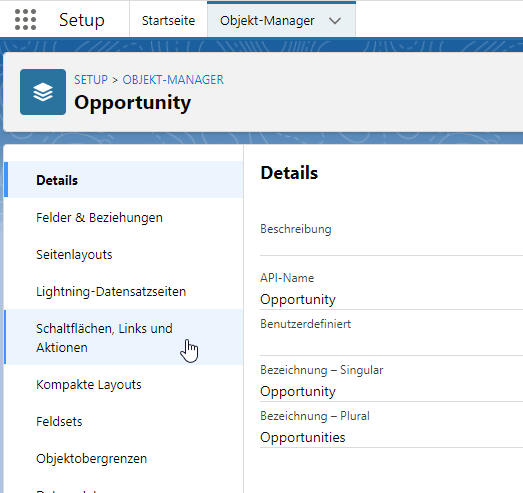
The button is created in the Object Manager in the respective object. The menu item for this is ‘Buttons, Links and Actions’:
 X
X
You can then create a new button by clicking on the 'New button / New link' button in the top right-hand corner.
Here, you select a label (displayed in the layout for the user) and a name (technical name). You also specify the display type. In our case, this is 'Button for detail page'.
We specify 'URL' as the content source.
We can now enter our URL in the large text field. First, enter the URL of the GANTT diagram that we have already created. In our case, this is the following:
https://gantt-demo-cloudworx-dev-ed.lightning.force.com/lightning/n/bersicht_Ma_nahmen_GANTT_Diagramm
The parameters that customise the standard diagram can then be attached to this URL. In our case, we want to achieve the following:
1. Only display the construction phases that are assigned to the current opportunity
2. Change the colour of the bars
In order to assign the construction phases to an opportunity, we must be able to uniquely identify the opportunity in the construction phase. In our example, I have created a formula field in the construction phase object that contains the opportunity ID. The field is called 'Opportunity_Idc'. The URL now uses the parameter 'cwgtfilterStatement' to check that the ID in the OpportunityId_c field in the construction phase matches the ID of the opportunity in which the button was created:
cwgt__filterStatement= Opportunity_Id__c = '{!Opportunity__c.Id}'
(Important: the merge field for the Opportunity ID must be enclosed in quotation marks)
In addition, we will change the colour of the bars to green: cwgt_color=0ffc03
The individual parameters must be linked. The first parameter starts with a '?'. All others are started with an '&'.
The complete URL as we entered it in the button then looks like this:
https://gantt-demo-cloudworx-dev-ed.lightning.force.com/lightning/n/bersicht_Ma_nahmen_GANTT_Diagramm?cwgt__filterStatement= Opportunity_Id__c = '{!Opportunity.Id}'&cwgt__color=0ffc03
Please note:
After creating the button, it must be added to the page layout so that it is displayed.
7.2. List of parameters for dynamic diagram creation
The following parameters can be used to customise the GANTT chart. The information in the corresponding fields in the Lightning Application Generator for this chart will be temporarily overwritten.
For parameters that expect a field name, the API name of the field must be entered.
For parameters that expect a Boolean value, 'true' or 'false' must be entered.
| Parameter | Description |
|---|---|
| cwgt__recordId | ID of the data record to be referenced |
| cwgt__objectName | API name of the object whose data records are to be displayed as bars. |
| cwgt__relationField | |
| cwgt__filterStatement | The filter statement can be used to narrow down the records from the object (see objectName). SOQL is expected here. |
| cwgt__textField | The API name of the field used for identification in the bar. |
| cwgt__startDateField | API name of the field for the actual start time of an operation. |
| cwgt__endDateField | API name of the field for the actual end time of an operation. |
| cwgt__progressField | API name of the field that displays the progress (in percent). |
| cwgt__plannedStartDateField | API name of the field for the planned start time of an operation. |
| cwgt__plannedEndDateField | API name of the field for the planned end time of a task. |
| cwgt__deadlineField | API name of the deadline field. A date field is expected here. |
| cwgt__groupLevel1Field | Field that groups the tasks at the top level. |
| cwgt__groupLevel2Field | Field that groups the tasks on the second level. |
| cwgt__groupLevel3Field | Field that groups the tasks on the third level. |
| cwgt__linkObjectName | The API name of the object used to link the individual tasks. |
| cwgt__linkSourceField | Relationship field between a previous process and the link object. |
| cwgt__linkTargetField | Relationship field between a subsequent process and the link object. |
| cwgt__showFilter | Boolean value. If 'true', the filter options (search field and button) are displayed. |
| cwgt__defaultTreeState | This parameter can be used to display the task tree in different states: full -> All information is displayed, name -> Only the names of the tasks and levels are displayed, none-> The task tree is not displayed. ATTENTION: Pay attention to lower case letters. |
| cwgt__showCollapsed | If true, only the top level of the directory tree is displayed when the diagram is called up. |
| cwgt__showCriticalPath | Displays the button to activate and deactivate the critical path if true. |
| cwgt__enableCriticalPath | Sets the critical path to active when the diagram is called if true. |
| cwgt__showAutoschedule | Displays the button to activate and deactivate automatic scheduling of tasks if true. |
| cwgt__enableAutoschedule | Enables automatic scheduling when the diagram is called if true. |
| cwgt__readOnlyFlag | Default: 'false'. If 'true', the tasks can no longer be moved or the start and end dates adjusted. Connections between tasks (if a link object exists) can still be created and deleted. Auto-scheduling is not possible in this case. |
| cwgt__color | Changes the colour. A hexadecimal value is expected here. |
| cwgt__height | Changes the height of the entire diagram. The value must be specified in pixels. |
Legal notice | Privacy Policy